[Fixed] OWA: Outlook Web Access has encountered a Web browsing error

11:41 AM 9 Comments

The background (tested on)

Server: Microsoft Exchange 2007
PC OS: Windows 7 64 bit & 32 bit
Browser: Internet Explorer 9, 10, 11.

The error

Outlook Web Access has encountered a Web browsing error when trying to access email via Exchange OWA.
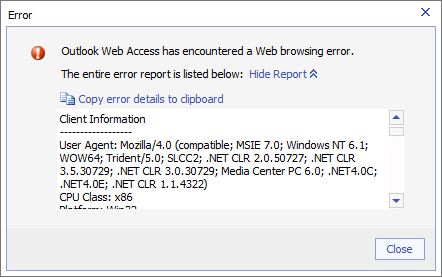

Expanded info:
Client Information
------------------
User Agent: Mozilla/4.0 (compatible; MSIE 7.0; Windows NT 6.1; WOW64; Trident/5.0; SLCC2; .NET CLR 2.0.50727; .NET CLR 3.5.30729; .NET CLR 3.0.30729; Media Center PC 6.0; .NET4.0C; .NET4.0E; .NET CLR 1.1.4322)
CPU Class: x86
Platform: Win32
System Language: en-us
User Language: en-us
CookieEnabled: true
Mime Types:

Exception Details
-----------------
Date: Fri Jan 2 15:17:35 UTC+0800 2015
Message: The value of the property 'fidoCallback' is null or undefined, not a Function object
Url: https://webmail.[removed].com.sg/owa/
Line: 1

Call Stack
----------


Dump Event
----------
recordset = null
type = error
fromElement = null
toElement = null
altLeft = false
keyCode = 0
repeat = false
reason = 0
data =
behaviorCookie = 0
source = null
contentOverflow = false
behaviorPart = 0
url =
dataTransfer = null
ctrlKey = false
shiftLeft = false
dataFld =
returnValue = undefined
qualifier =
wheelDelta = 0
bookmarks = null
actionURL =
button = 0
srcFilter = null
nextPage =
cancelBubble = false
x = 0
y = 0
buttonID = 0
srcElement = null
screenX = 719
screenY = 455
srcUrn =
origin =
boundElements = [object]
clientX = 719
clientY = 347
propertyName =
shiftKey = false
ctrlLeft = false
offsetX = 0
offsetY = 0
altKey = false
errorMessage = The value of the property 'fidoCallback' is null or undefined, not a Function object
errorUrl = https://webmail.[removed].com.sg/owa/
errorLine = 1
errorCharacter = 1
errorCode = 0

The solution

Uninstall Multifactor Authentication Client by Nok Nok Labs in Control Panel.
I'm not quite sure what the software does, but nothing is affected by uninstalling it.
I believe the software comes together with Lenovo laptop which most people use in my company.

Thanks,
Jo.

[Fixed] Access to this web server is disabled by default...

5:39 PM 1 Comment

Access to this web server is disabled by default because it is controlled by basic authentication and does not use Secure Sockets Layer (SSL). Do you want to search the Microsoft Online Support Center to view possible solutions?

The Problem

Screenshot says it all: (I do not know what exactly caused the problem)
(This applies to all Microsoft Office products)

The Solution

Download the fix from Microsoft website (Microsoft Fix it 50711), patch, and fingers crossed.

So far I've met 3 same cases and all solved by fix it 50711.

Gd luck,
Jo
Where's my coffee?

[Fixed] Unable to uninstall Internet Explorer: An error has occurred not all of the updates were successfully uninstalled

10:03 AM 24 Comments

My Case

OS: Windows 7 Pro 32bit
IE: IE10 installed. Wants IE9.

The Problem


By default, you guys should already know that we can downgrade current Internet Explorer version to previous version via Control Panel - Programs and Features - View installed updates - right click on "Internet Explore XX" - Uninstall (there, I told you how if you don't know my "by default" :p -- But it doesn't work if you already have the lowest version of IE for the OS)

The problem with this one is that right after you clicked on Uninstall, an error message popup stating that "An error has occurred not all of the updates were successfully uninstalled" without any error code, warning whatsoever. It is so frustrating!


The Solution What I Did to Solve the Problem


The be frank, I did a couple of "fixes" altogether and I'm not quite sure which solved the problem v_v

Before start, it's a good idea to download the installation files for IE (and alternative) incase anything goes wrong:
Download IE 9: http://www.microsoft.com/en-sg/download/internet-explorer-9-details.aspx
Download IE 9 (3rd party website): http://internet-explorer-9.en.softonic.com/
Download Firefox: http://www.getfirefox.com
Download Google Chrome: https://www.google.com/chrome/browser/desktop/index.html

1. Uninstall via command (cmd)

1) Run Command Prompt with Administrator rights
2) Carefully select and copy the following command:
FORFILES /P %WINDIR%\servicing\Packages /M Microsoft-Windows-InternetExplorer-10*.mum /c "cmd /c echo Uninstalling package @fname && start /w pkgmgr /up:@fname /quiet /norestart"
3) Right-click inside the Administrator: Command Prompt window, and then click Paste to paste the command that you just copied. Or, just type it in.
4) Press ENTER to uninstall and restart your computer when it finished.
5) Install standalone IE installer you downloaded. Fingers crossed and hope it works.

* You can change the number highlighted in red above to uninstall other version. Example, 11, 10, 9. You get the idea. I did all 3... don't think it's necessary -_-

2. Disable windows update

1) Run services.msc
2) Look for "Windows Update" and disable it
3) Go to C:\Windows
4) Rename the folder named SoftwareDistribution to SoftwareDistribution.old (not sure if it's necessary)
5) Go to Control Panel
6) Go to Program and Features
7) Go to View installed updates
8) Find "Internet Explorer 10" and uninstall it. (hope it works!)
9) Restart the computer and it will revert to previous version (IE9) !

3. Internet Explorer won't start, open then closes immediately (after downgrade)


Before I explain the solution let me describe the problem in detail. For some unknown reason, I have always had this problem on my main computer with Internet Explorer 9: whenever I want to run it, a blank window appears for 0.1 second then closes instantly, without any error message or anything. The solutions I describe are valid for Internet Explorer 7 (IE7), Internet Explorer 8 (IE8) and Internet Explorer 9 (IE9). I am running Windows 7 but the solutions also work for Windows Vista and Windows XP.
taken from: http://cnedelcu.blogspot.sg/2012/05/top-3-fixes-for-internet-explorer-wont.html

Head to http://iefaq.info/index.php?action=artikel&cat=42&id=133&artlang=en and download the script.
Please take note on the 32bit/64bit.

Once you have that downloaded, extract the ZIP archive, you will find a .cmd file (command-line batch file). It contains instructions that will repair your system and allow Internet Explorer to finally work again. DISREGARD the filename: it's called "IE8" but it works with IE7, IE8 and IE9. To run it, right-click the file and click "Run as administrator".
taken from: http://cnedelcu.blogspot.sg/2012/05/top-3-fixes-for-internet-explorer-wont.html

Please let me know which are the steps you took to solve the problem!

Give me a Like, a +1 or just drop a comment if this fix yours! :D

Regards,
Jo.


[Fixed] Excel 2013: There was a problem sending the command to the program.

5:39 PM 21 Comments

So, Excel problem again.

I have one user having this issues for a few days before she decided to approach me.


The Problem

The symptoms was the xlsx file would not open if she double click the file; but it works just fine if she opens it via File - Open (within Excel itself).

Screenshot of the problem attached:


The Fix

Head to File - Options - Advanced - General
Ensure "Ignore other applications that use Dynamic Data Exchange (DDE)" is uncheck


Try to double click the xlsx file as per normal.

If this doesn't work, try this other workaround:

Go to File - Options - Trust Center - Trust Center Settings - Macro Options
Enable all macros & tick Trust access to the VBA project object model

ActiveX Settings
Ensure "Prompt me before enabling all controls with minimal restrictions" is selected.

Privacy Options
Ensure "Check Microsoft Office documents that are from or link to suspicious Web sites" is unchecked.

However, please double check which one of the options are getting your spreadsheets opening again as there might be security risks for you if you select all as above (referring to Trust Center Settings)


Gd luck,
Jo.